 PicUnfold
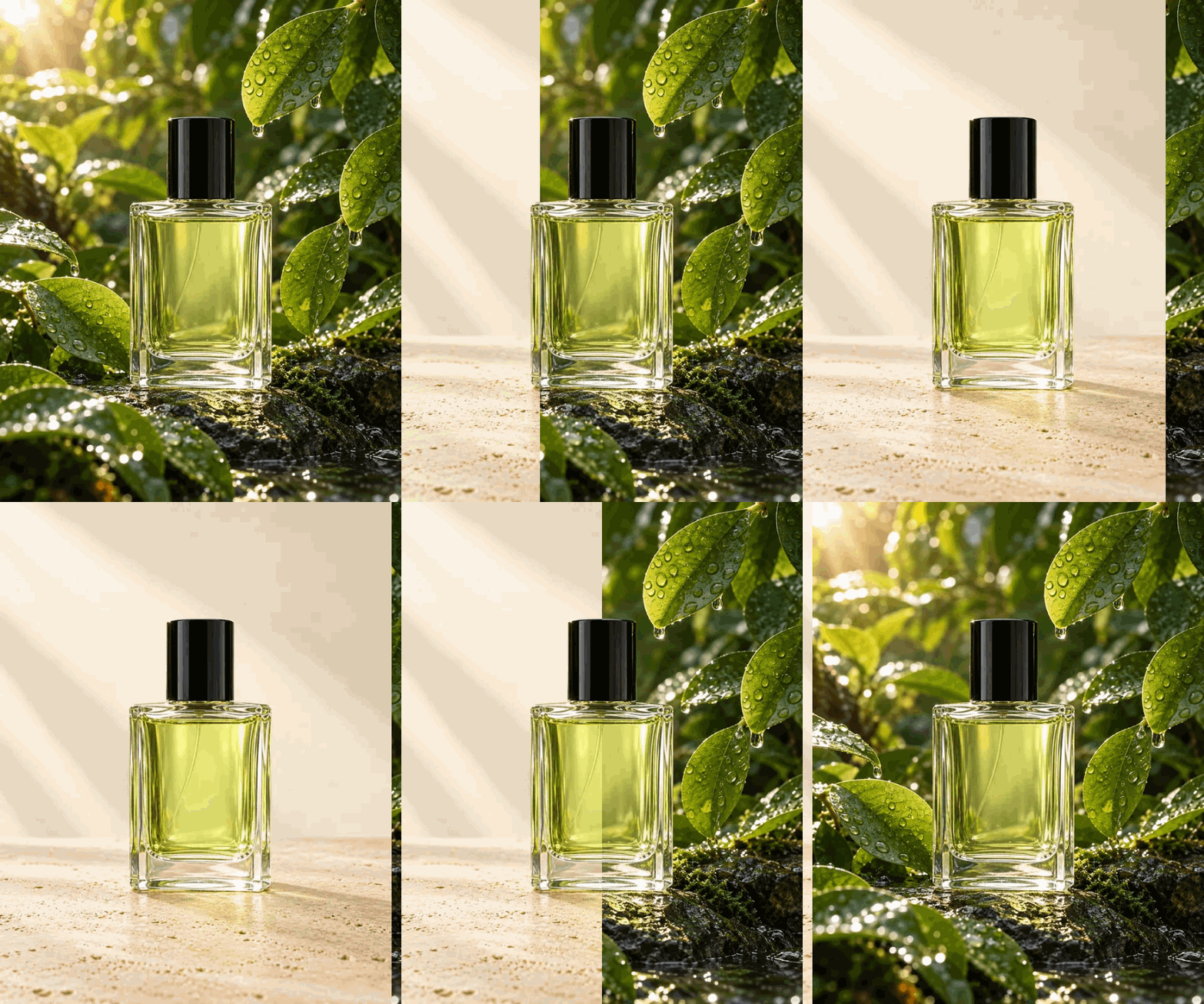
Show a product detail
Start with the full photo, then zoom in on a stitch, clasp or material. Use a sharp original so the detail holds up when the camera moves closer.
Show a detail, reveal a change, or turn a sequence of product photos into a loop.
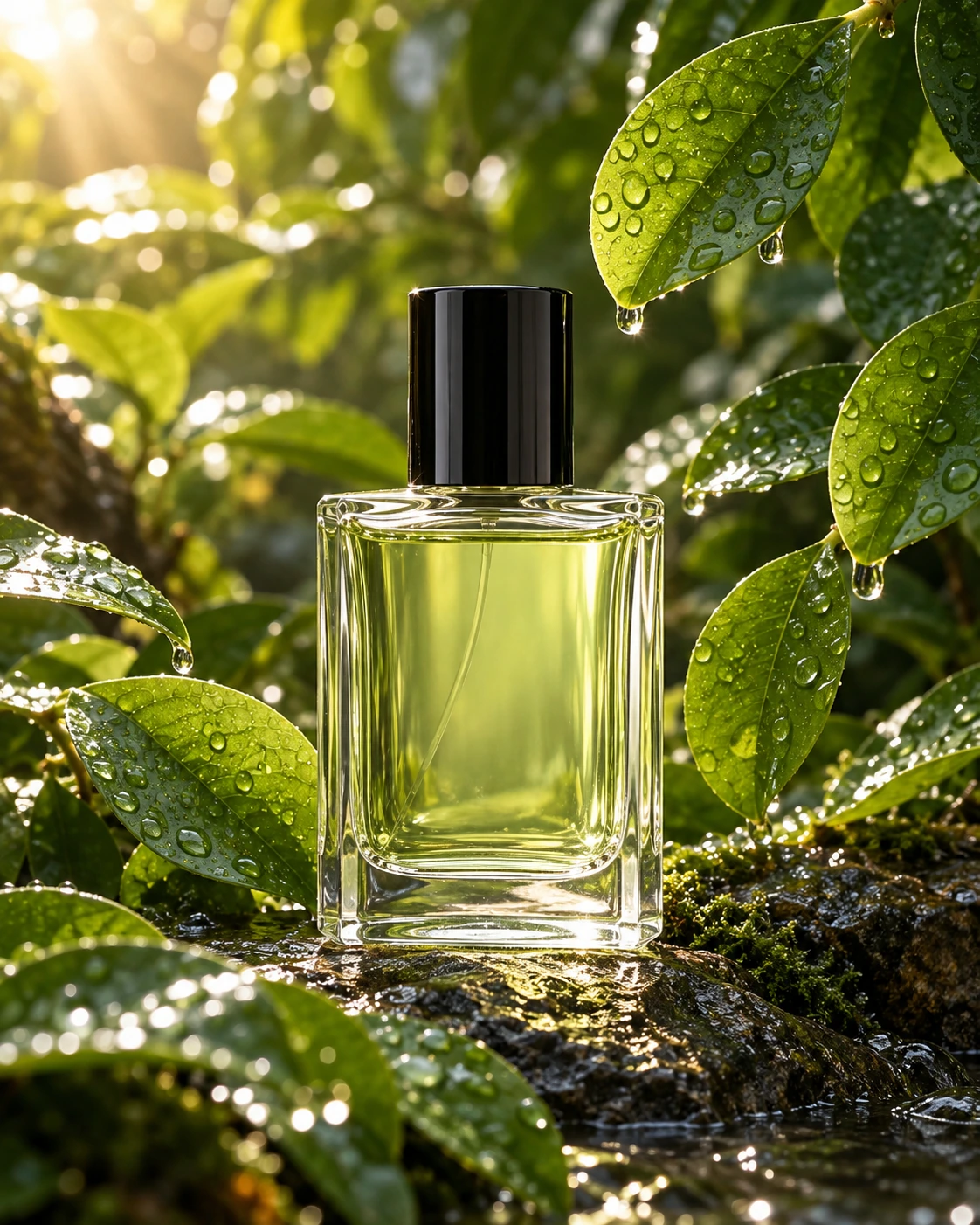
Start with the full photo, then zoom in on a stitch, clasp or material. Use a sharp original so the detail holds up when the camera moves closer.
Use two photos with the same subject position to show a background change or retouch. The wipe keeps both versions in view during the transition.
Add a photo for each variant, keeping the angle and scale consistent. Set a longer hold if shoppers need time to compare the colors.
Use one photo for a detail zoom, two for a before-and-after reveal, or two to 24 for a color and style loop.
Yes. GIF downloads can reach 2,048 pixels on the longest side when your photos have enough detail. If a source is smaller, or a close-up uses only part of the photo, the export uses the available resolution. The download panel shows the actual dimensions and file size.
More frames, larger dimensions and complex textures increase the file size. The tool plays a smaller preview while you work and prepares the full GIF when you request a download. Use fewer frames if you need a smaller file.
The first photo sets the frame shape. Other photos are cropped to fill it. For a color loop, use photos with the same framing so the product stays in the same position as the GIF plays.
These photo effects and GIF downloads run in your browser. The photos stay on your device.