Start with an image
Choose a JPG, PNG or WebP image up to 10 MB, or start with one of the examples.
 PicUnfold
THE IMAGE-TO-IMAGE GUIDE
Start from an image, describe a specific change, then compare the result with your original. Here is how to prepare an edit in PicUnfold.
Interactive preview · live AI generation is coming
Explore the preview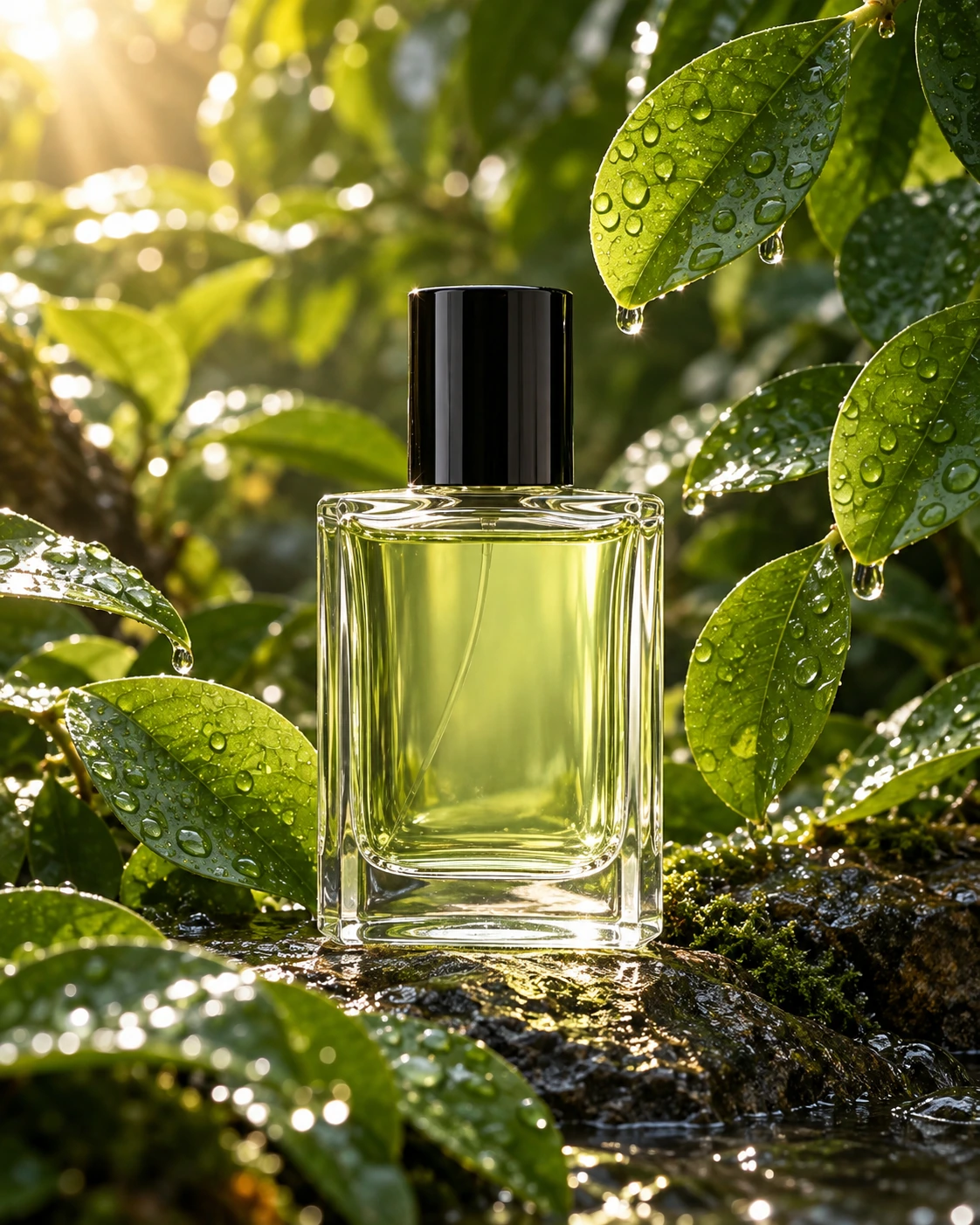
Keep the same perfume bottle. Replace the leafy background with a warm ivory studio backdrop and a travertine tabletop.
Explore the preview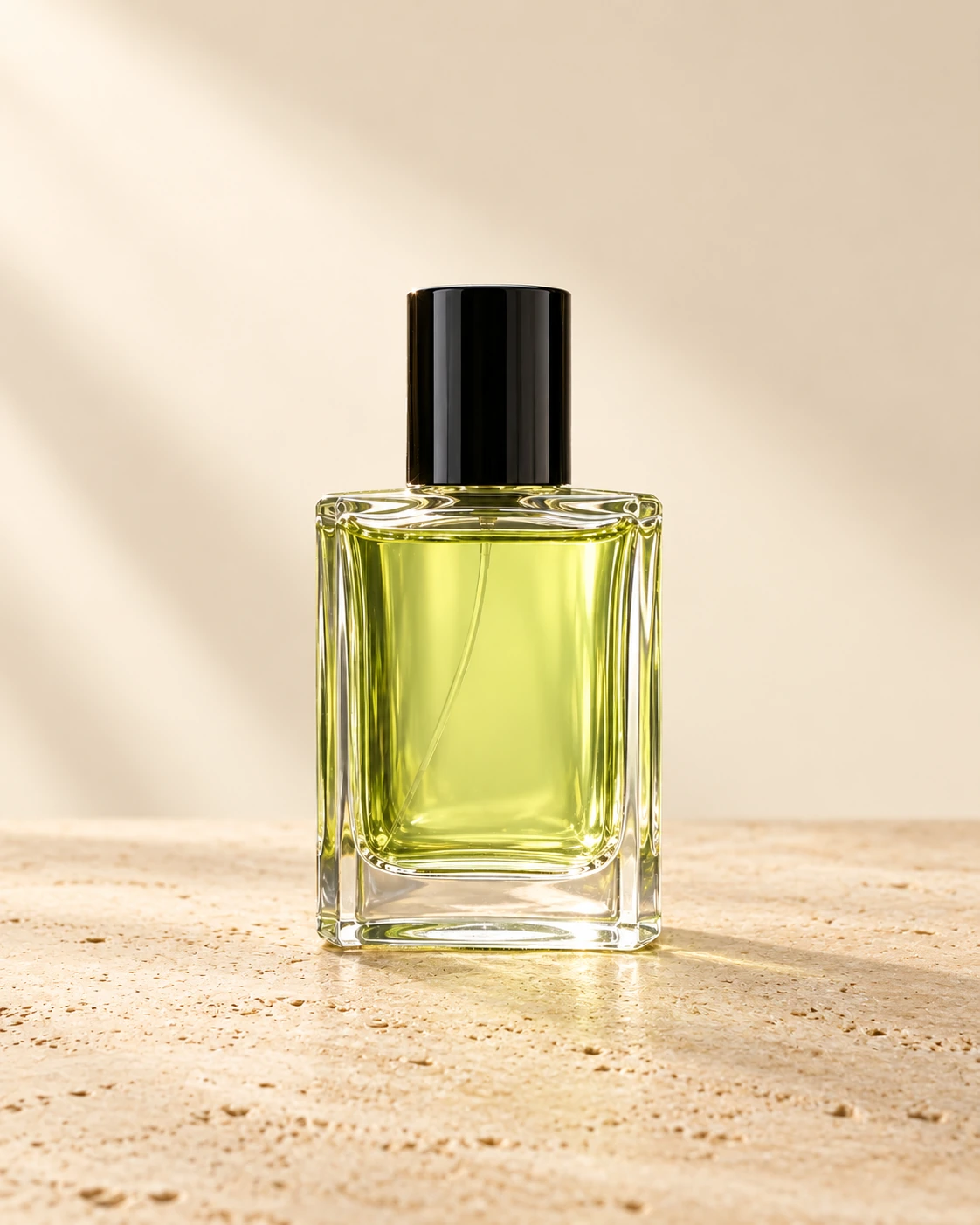
Choose a JPG, PNG or WebP image up to 10 MB, or start with one of the examples.
Say what you want to change and what should stay. A clear background, color or style request gives your idea direction.
Review your image, prompt and settings. This preview prepares your idea; it does not generate a new AI image yet.
Image-to-image uses an existing image as a visual reference. Text-to-image starts from a written description. PicUnfold has separate starting points for both workflows.
Not yet. This is an interactive product preview. You can prepare an edit and explore before-and-after examples, but no model is called and no generation credits are charged.
In this preview, the studio uses a temporary browser preview of your file. It does not send that file to an AI model. Reloading the page clears your selected file.
The examples are independently prepared AI illustrations of possible edits. They show the intended workflows, rather than verified outputs from a connected PicUnfold model.