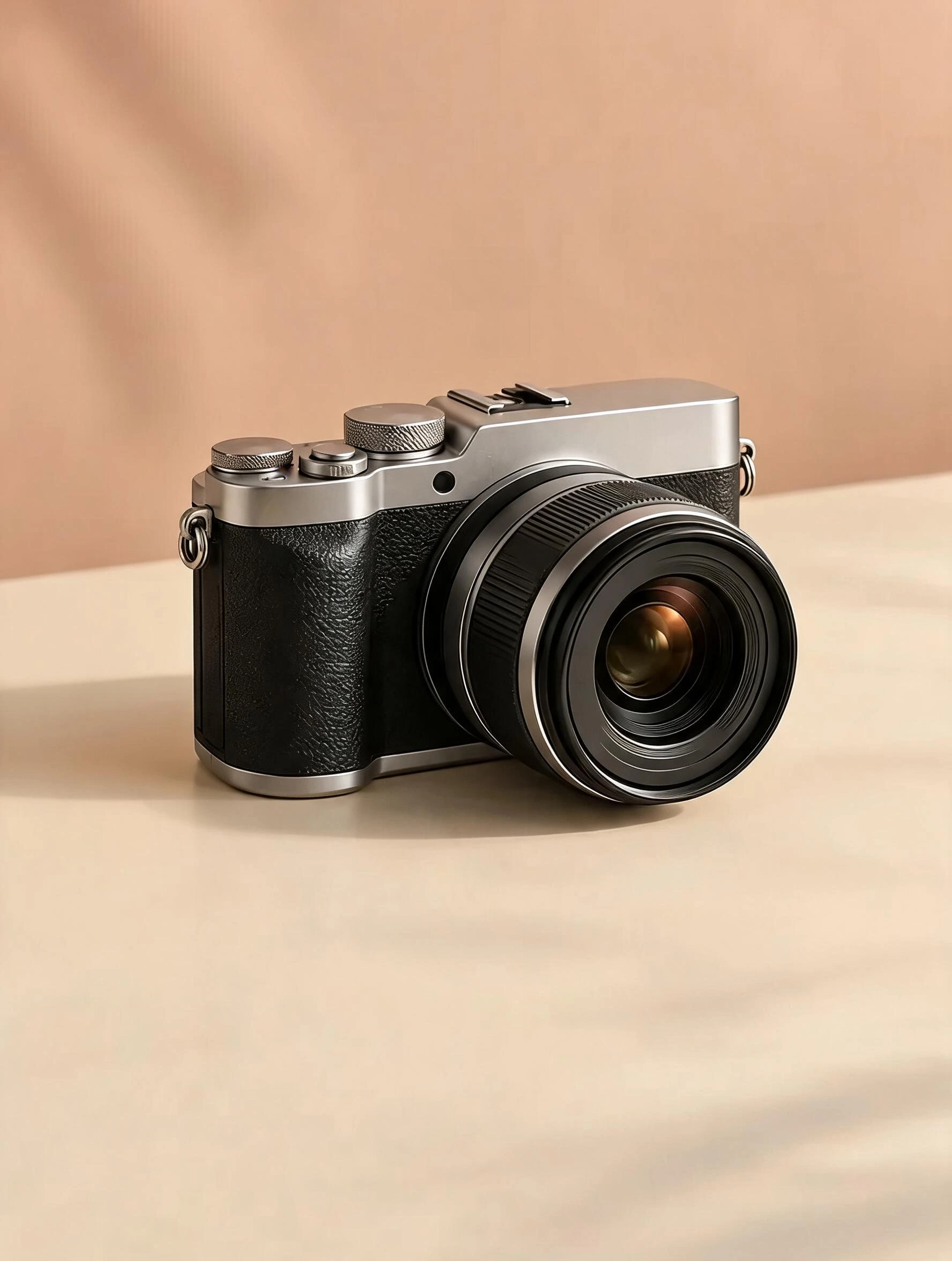
Clear the clutter around a product
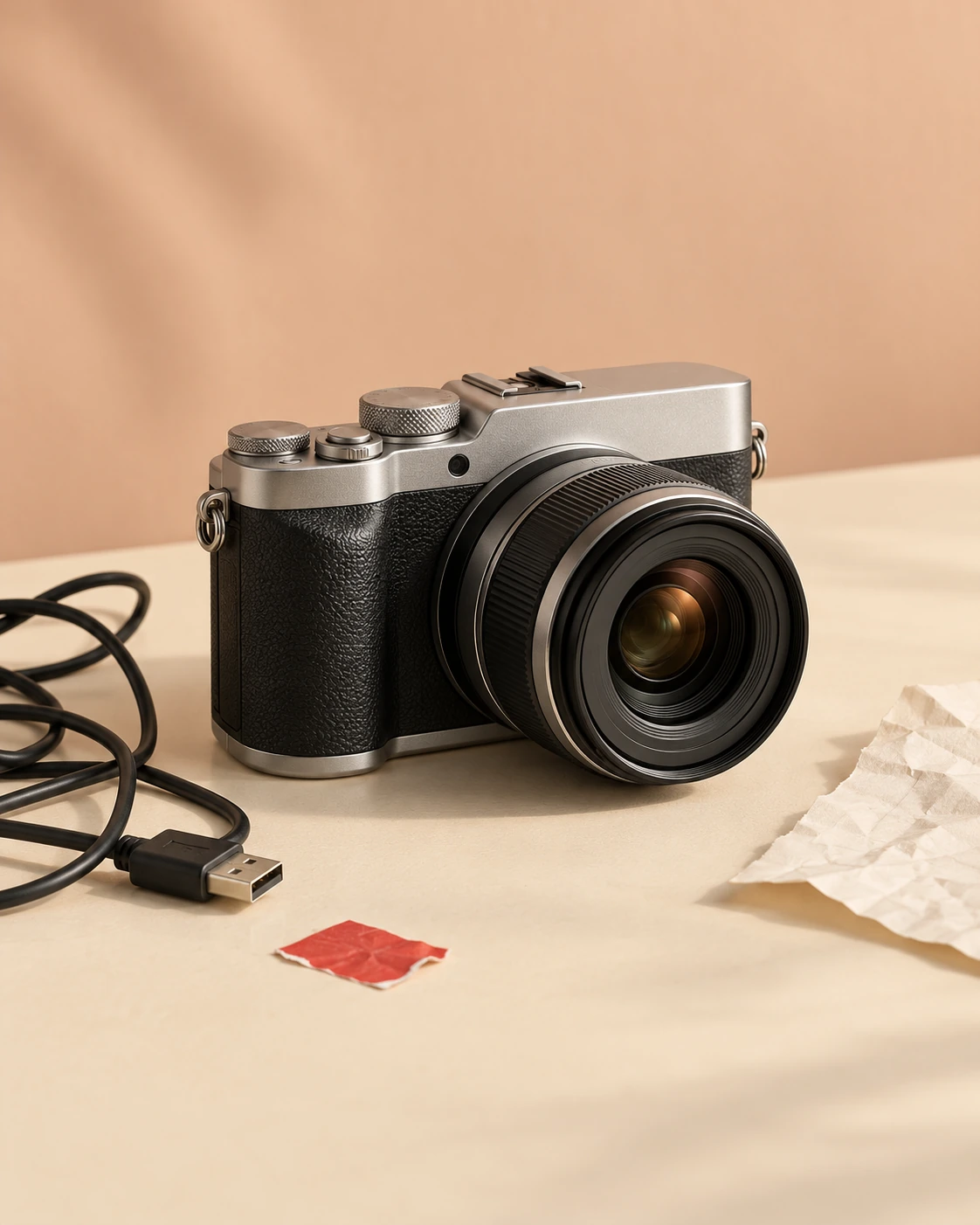
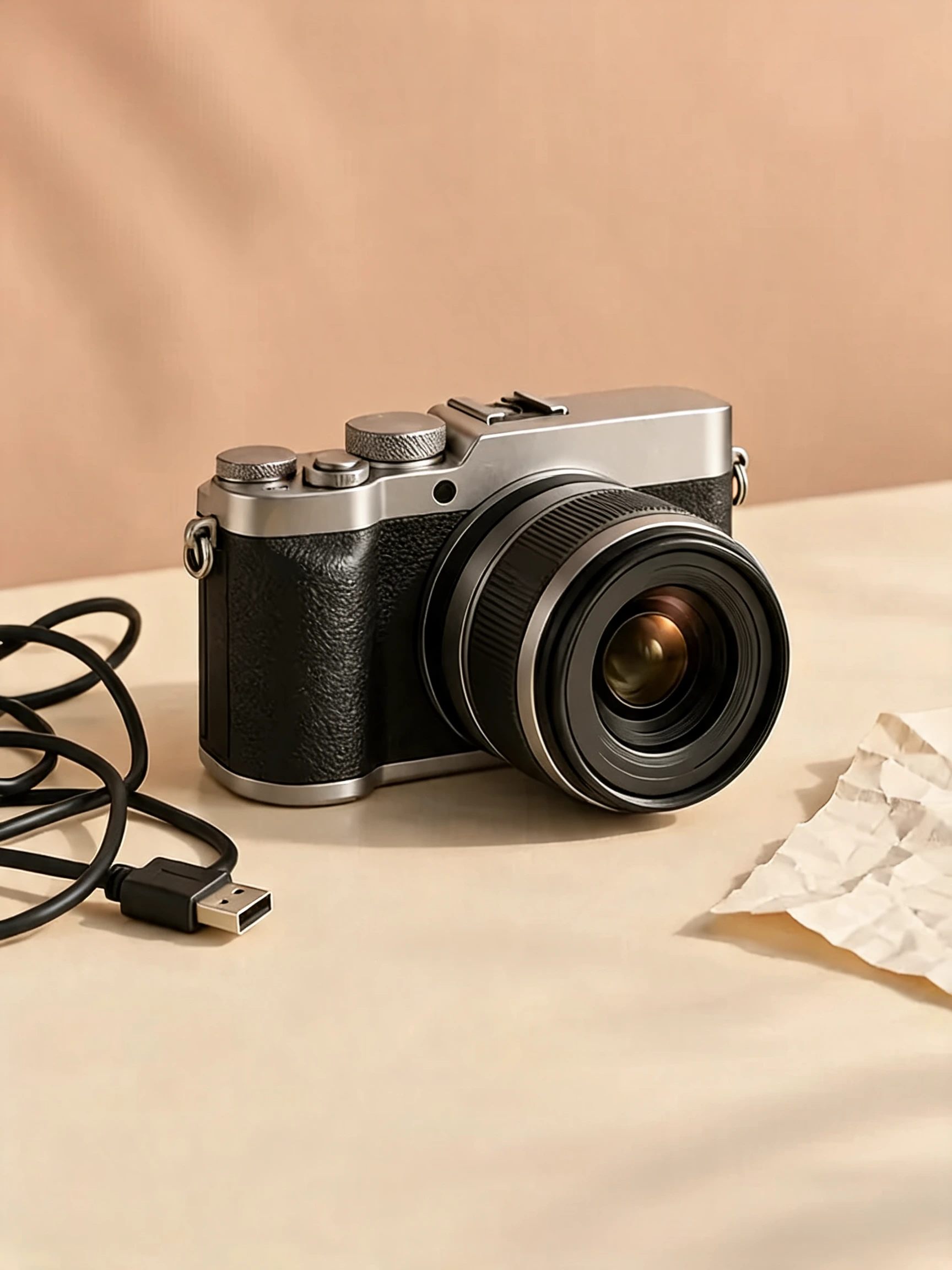
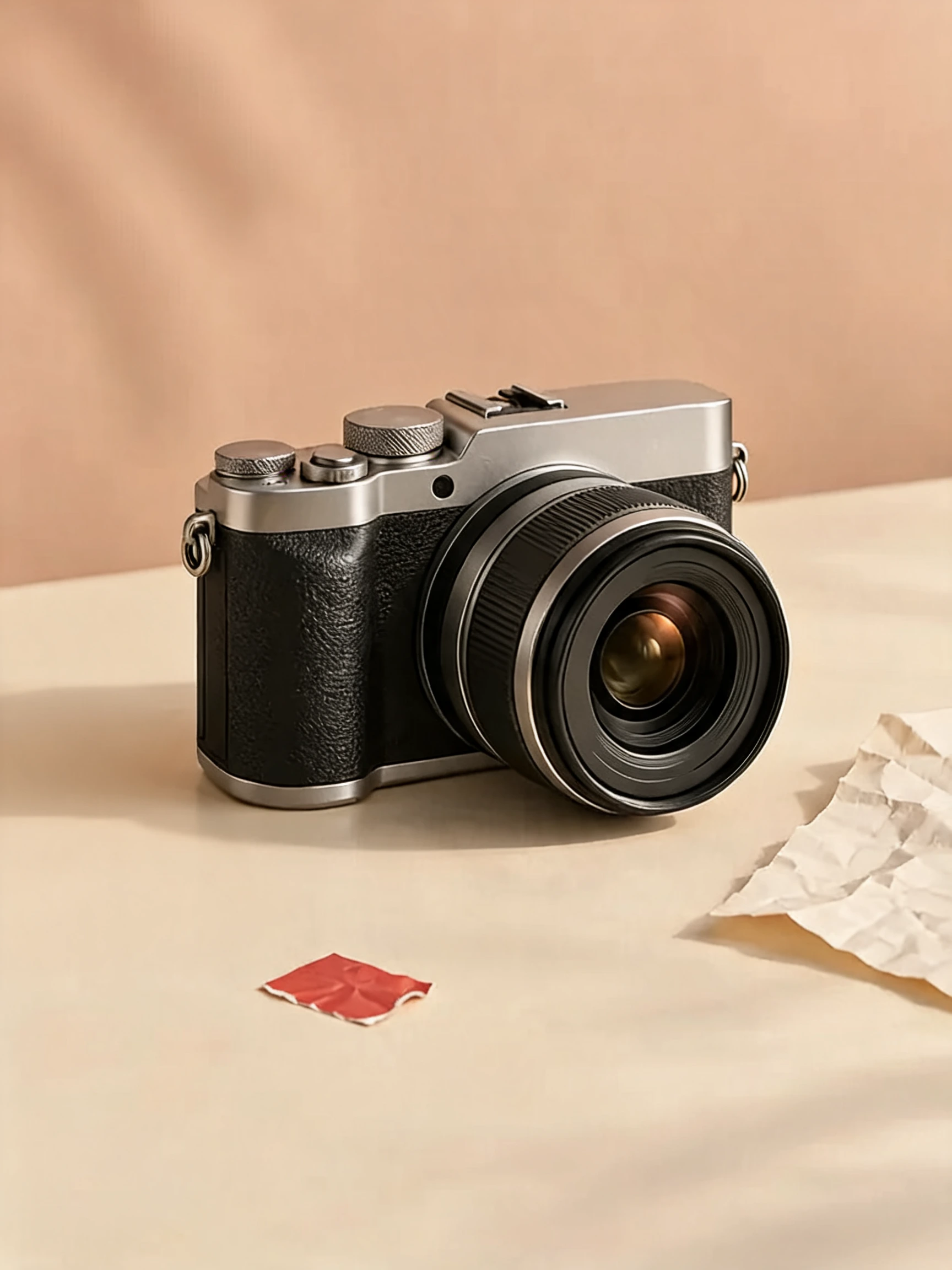
Clear the cable, paper and sticker together. A grouped request turns a busy tabletop into a simpler setting for the camera.
 PicUnfold
Remove objects from photos
Clear an unwanted person, cable or stray object from a photo. Describe what to remove, then compare the result.
Compare original photos with actual model results. Try a sample or use its settings on your photo.
Photo editing toolsClear the cable, paper and sticker together. A grouped request turns a busy tabletop into a simpler setting for the camera.


The blue bin is removed; this result also clears the nearby cardboard box. Compare the reconstructed wall and pavement.
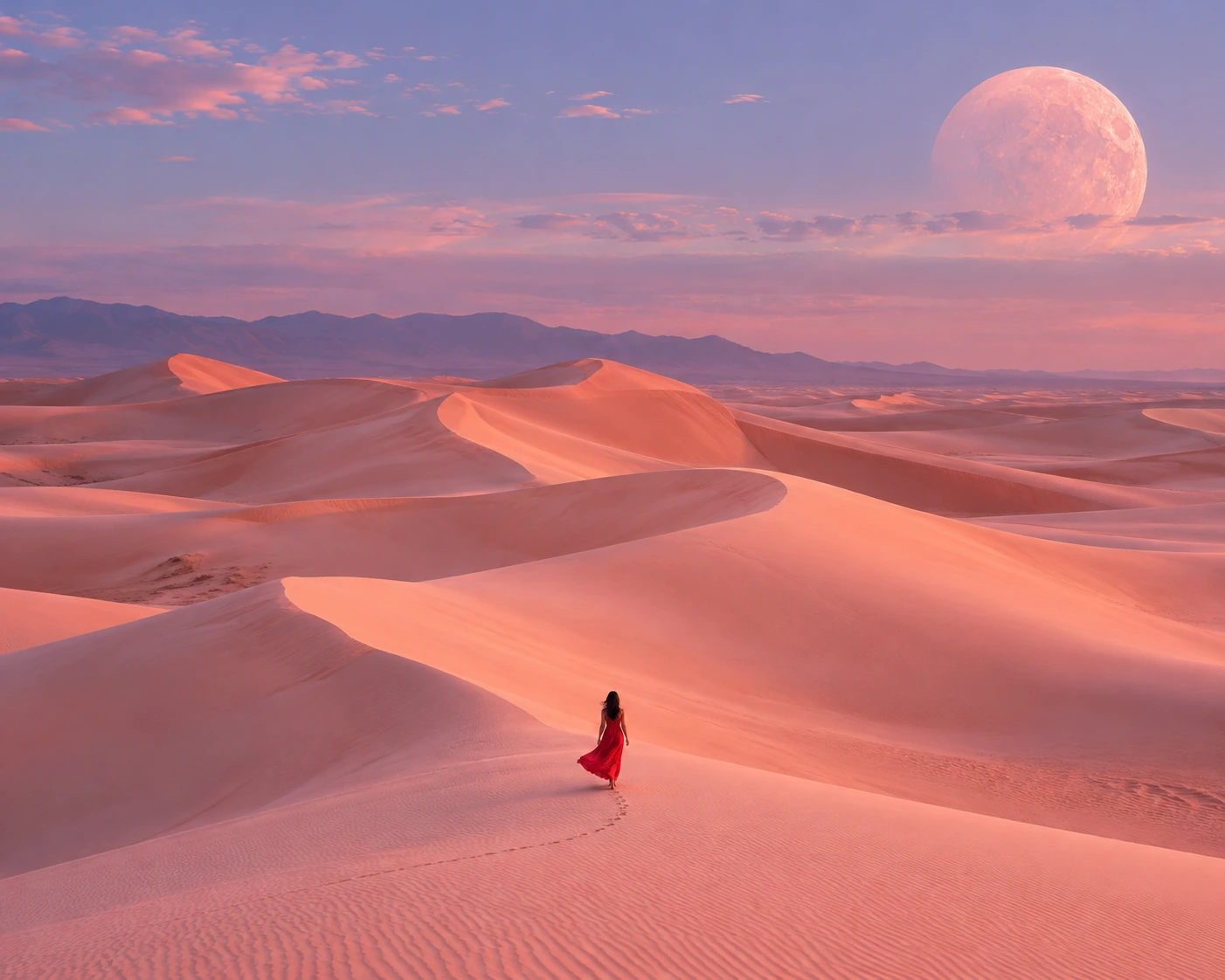
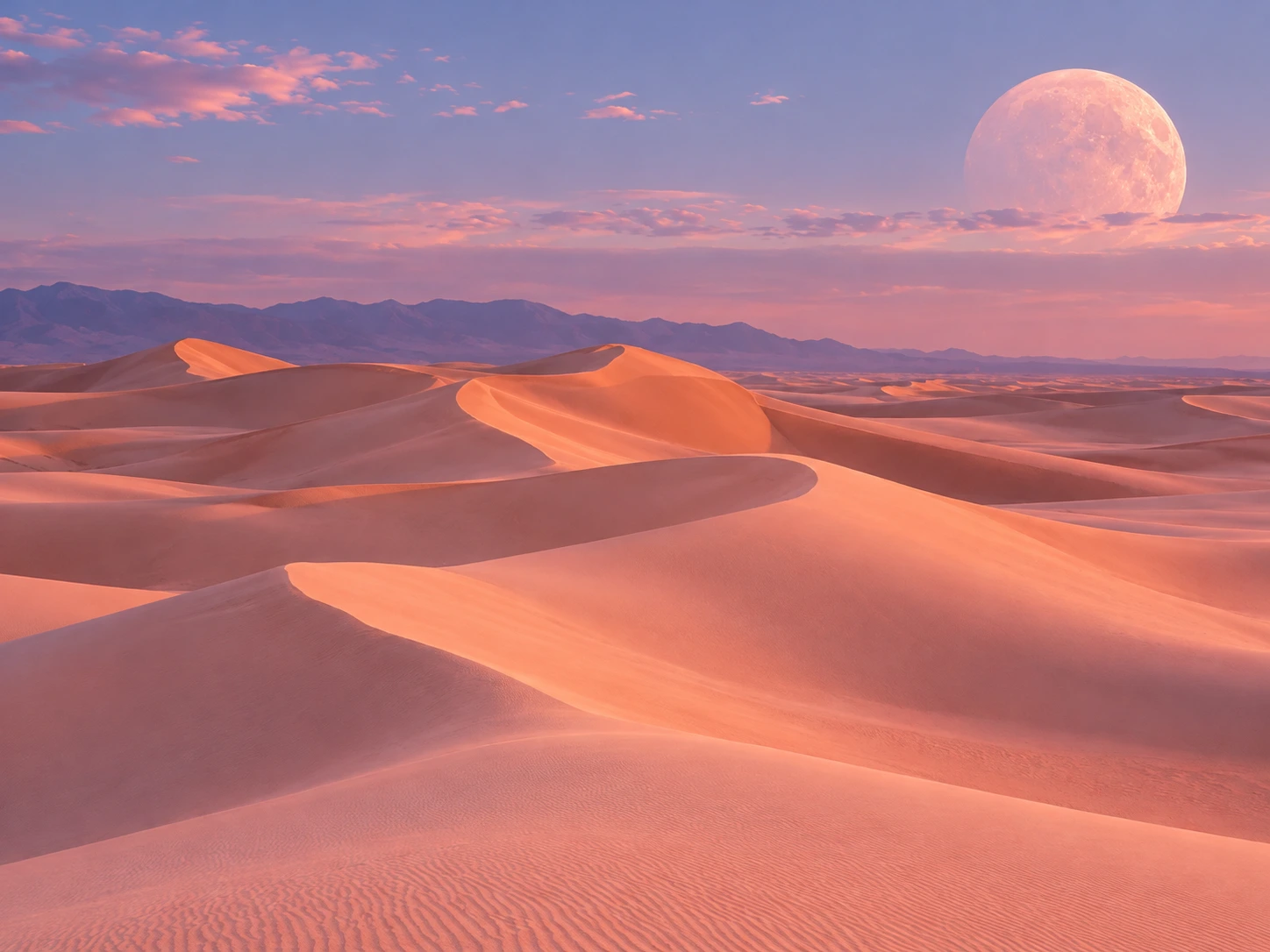
Remove the person and footprints from the dunes. Inspect the sand texture where the subject used to be.
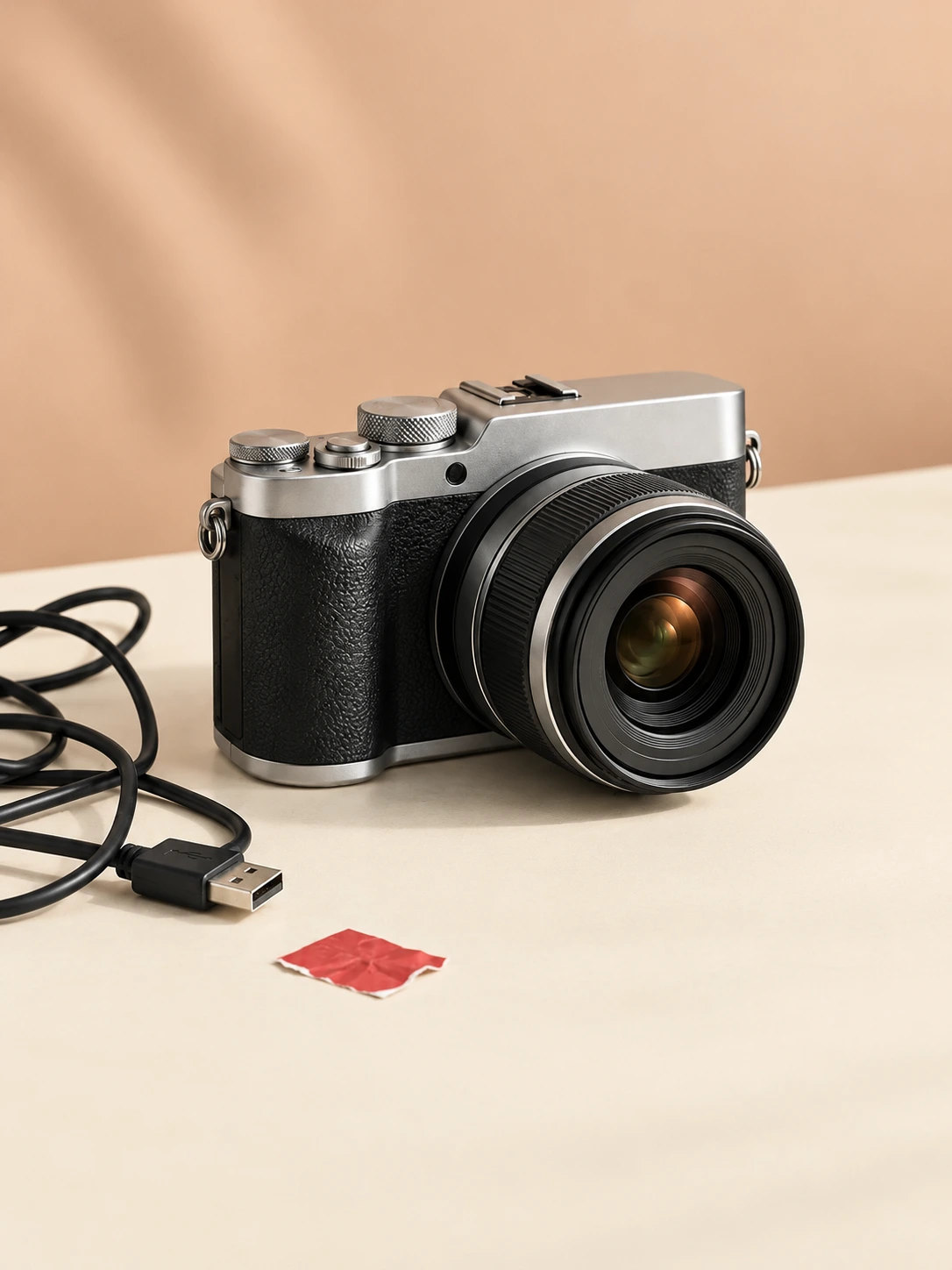
Remove the crumpled paper beside the camera. Inspect the reconstructed surface around the lens and camera body.

Remove the small cardboard box while leaving the larger blue bin in the scene. A precise object description helps distinguish two nearby distractions.
Clear a red sticker from the tabletop without asking for a full product cleanup. Compare the surface where the sticker was, as well as the camera and cable.
Remove a trailing cable from a product shot. The repair needs to blend into the table while the camera remains the focus.
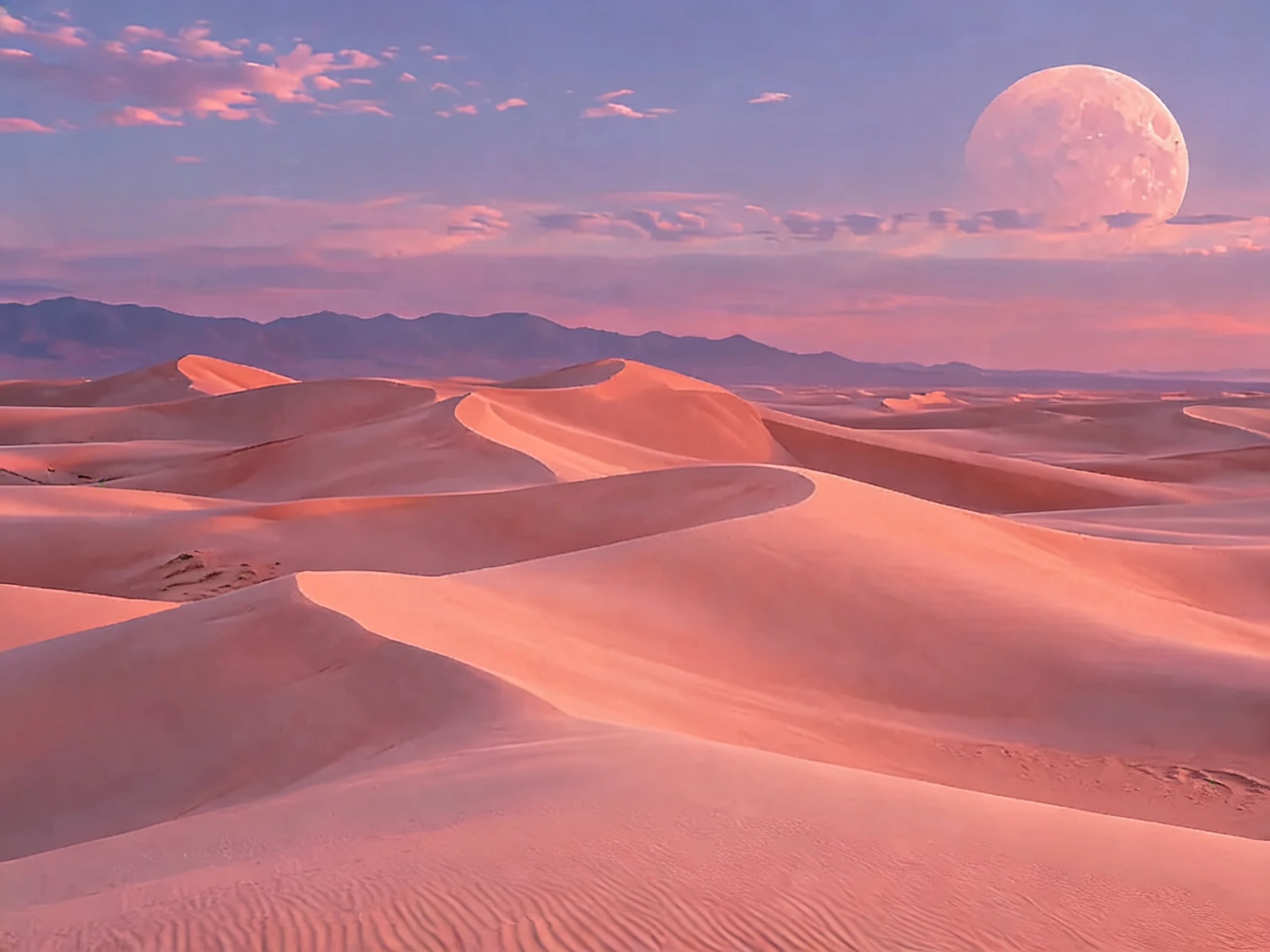
Take the figure out of a desert scene. Compare the rebuilt sand, the dune lines and the sky to judge the cleanup across a larger image.
Name the unwanted object and its position: “the bin on the right” is clearer than “clean this photo.” Use the repair preset to guide how the empty area should blend with the surrounding wall, floor or landscape.
Use a single-object request for a sticker, cable or box, or list several items when you want a fuller cleanup. Compare the repaired surface and check that important nearby details are still usable.
Choose a clear JPG, PNG or WebP image.
Remove an unwanted object or person and let AI fill the space.
Review the result, compare it with your photo, and download it.
No brush is required. This version uses your description rather than a painted selection. For crowded photos, identify the object and its position precisely.
You can request removal of associated shadows, reflections or footprints. Check the filled area afterward: AI reconstructs it and may change neighboring details.
The examples use our AI-created source images and actual edits from the model named on each example. They are demonstrations, not customer photos. Results depend on the input.
Upload your photo, choose an option, then generate. You can add instructions under Advanced settings.
Describe the object and its location clearly. Check the filled area for seams or invented details.
Verified accounts receive starter credits, subject to the daily allocation. Each generation uses the credits shown on the button.
AI edits may change fine details. Review faces, text, product details, and geometry before using the result.
Your files are private. When you generate, the reference is uploaded for processing. Reference files are kept for 7 days and generated files for 30 days. Download any results you want to keep. See the privacy policy for processing details.
Requests and images undergo safety checks. Credits used for a confirmed failed or undeliverable task are returned. Check My creations for its status.
Remove an unwanted object or person and let AI fill the space.