
How to Keep Faces and Product Details in AI Photo Edits
Ask for one change, name the details that must stay, and compare the result with your original before using it. These instructions can guide an AI edit, but they do not lock pixels. We tested a short request against a scoped request on two prepared images. Both product outputs kept the label words, while framing and portrait rendering still changed.
This is a small, four-output test of GPT Image 2.5 Flare at the requested 1K setting. It is not a comparison with Nano Banana or Seedream, and one run per condition cannot tell you how reliably either prompt will work on your own photo.
Start with one change and a keep list
A useful starting structure is:
Change only [the requested element]. Keep [the details that matter]. Leave everything else unchanged.
For a portrait, the keep list might include the expression, skin texture, hairstyle, clothing, pose and crop. For a product, name the label text, logo, cap, shape, proportions and camera angle. Avoid adding unrelated requests such as a new camera angle while you are trying to assess whether a label stays accurate.
This structure is consistent with OpenAI’s image prompting guidance, which separates the requested edit from preservation constraints. The same guidance warns that repeated edits can change details and recommends compositing when a region must remain pixel-identical. It does not promise that adding a longer list will always improve an output.
Use the examples below as instructions to adapt, rather than a formula that guarantees an unchanged face or product. Our image-to-image editor accepts an image and a written description; the prompt library has more examples of stating both the change and the things to preserve.
What we tested
On October 26, 2026, we submitted four image-to-image requests through Kie using the same provider payload builder as PicUnfold. The API model identifier was gpt-image-2-5-flare-image-to-image. Each request used one reference image, a 1:1 aspect ratio and the 1K resolution setting. All four returned files were 1254 × 1254 pixels. We retained every output, without retouching or selecting a better rerun.
The inputs were controlled synthetic fixtures, not customer photographs. The portrait depicts a fictional adult. The product input combines synthetic perfume artwork with a mechanically typeset fictional label. The label has five known strings, making it possible to check the output against the input. A flat, readable test label is easier to inspect than tiny print on curved real packaging; this test does not establish performance on those harder cases.
The two requests in each pair shared the same editing goal. The scoped request added preservation instructions. There was one run for each condition, with no repeated-seed experiment or blinded scoring. The direct API route tests model outputs; it does not test PicUnfold’s login, checkout or credit-deduction flow.
At publication, PicUnfold lists this model’s 1K edit at 8 credits per image. Check current generation prices and starter-credit conditions before you generate.
Portrait test: change the background to light blue
Both prompts requested a plain light-blue studio wall. The scoped version also named the visible details to retain and excluded beauty retouching.
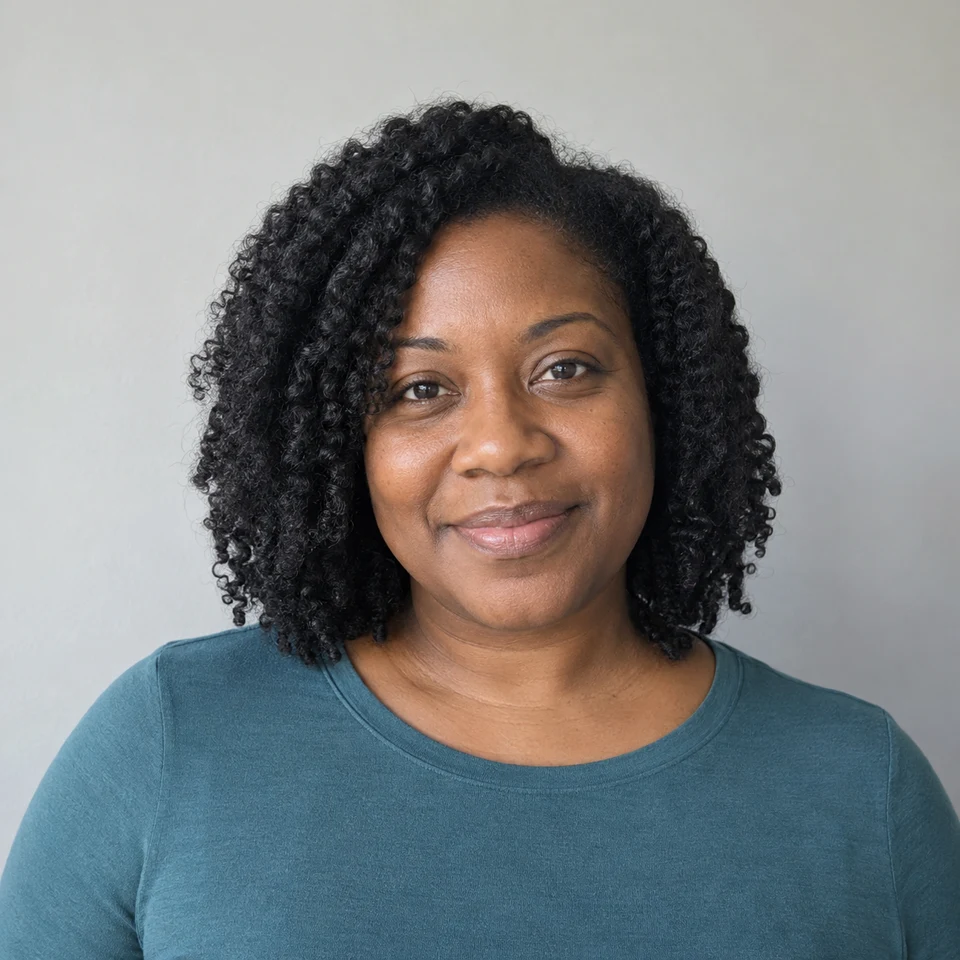
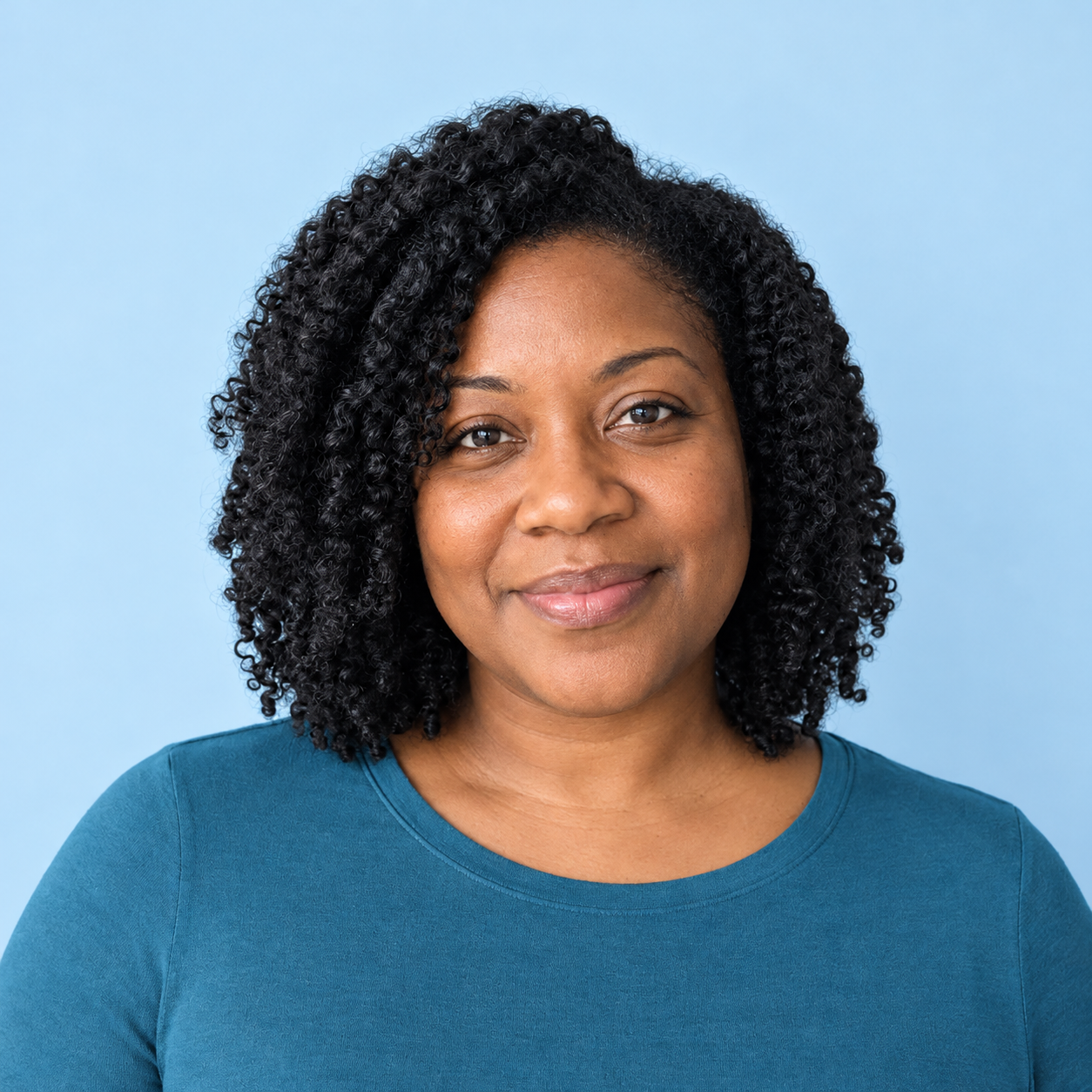
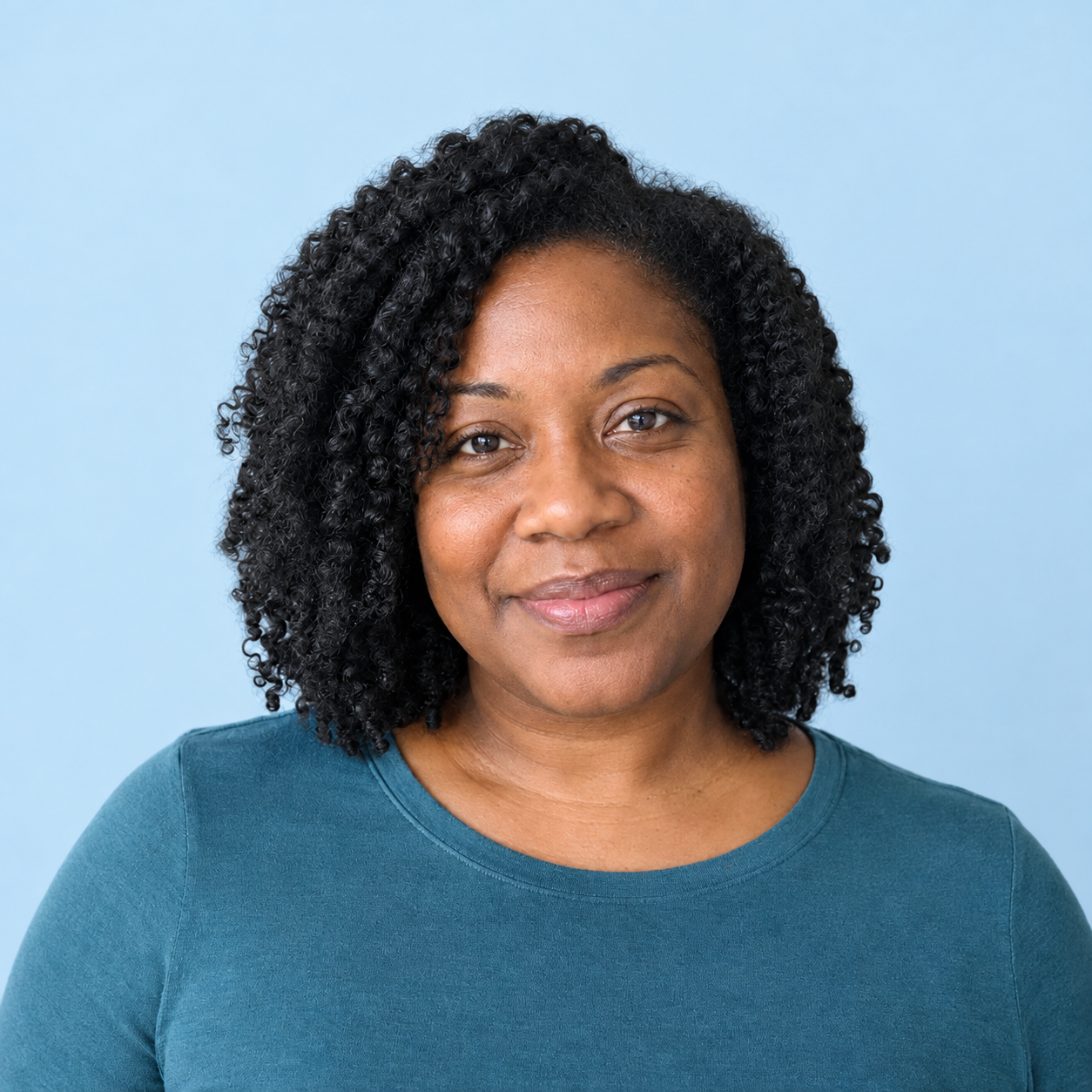
Basic prompt
Change the background to a plain light-blue studio wall.
Scoped prompt
Change the background to a plain light-blue studio wall. Change only the background. Keep the same face, eye spacing, nose, jaw, skin tone, skin texture, age, expression, natural asymmetry, hairline, curls, teal shirt, pose, crop, lighting on the person and camera angle. Do not beautify or retouch the person. Leave everything else unchanged.
Both outputs changed the gray background to blue and retained the broad hairstyle and teal clothing. Skin rendering, highlights and other local details differ from the input. The scoped output still contains re-rendered details; it is not a pixel-identical cutout placed over a new background.
This pair does not show a reliable winner. It would be misleading to turn two similar-looking results into a claim that the longer prompt always preserves a face better. The useful outcome here is a check you can repeat: compare the face at full size, rather than judging only whether the new background looks attractive.
Product test: replace the setting with a white studio background
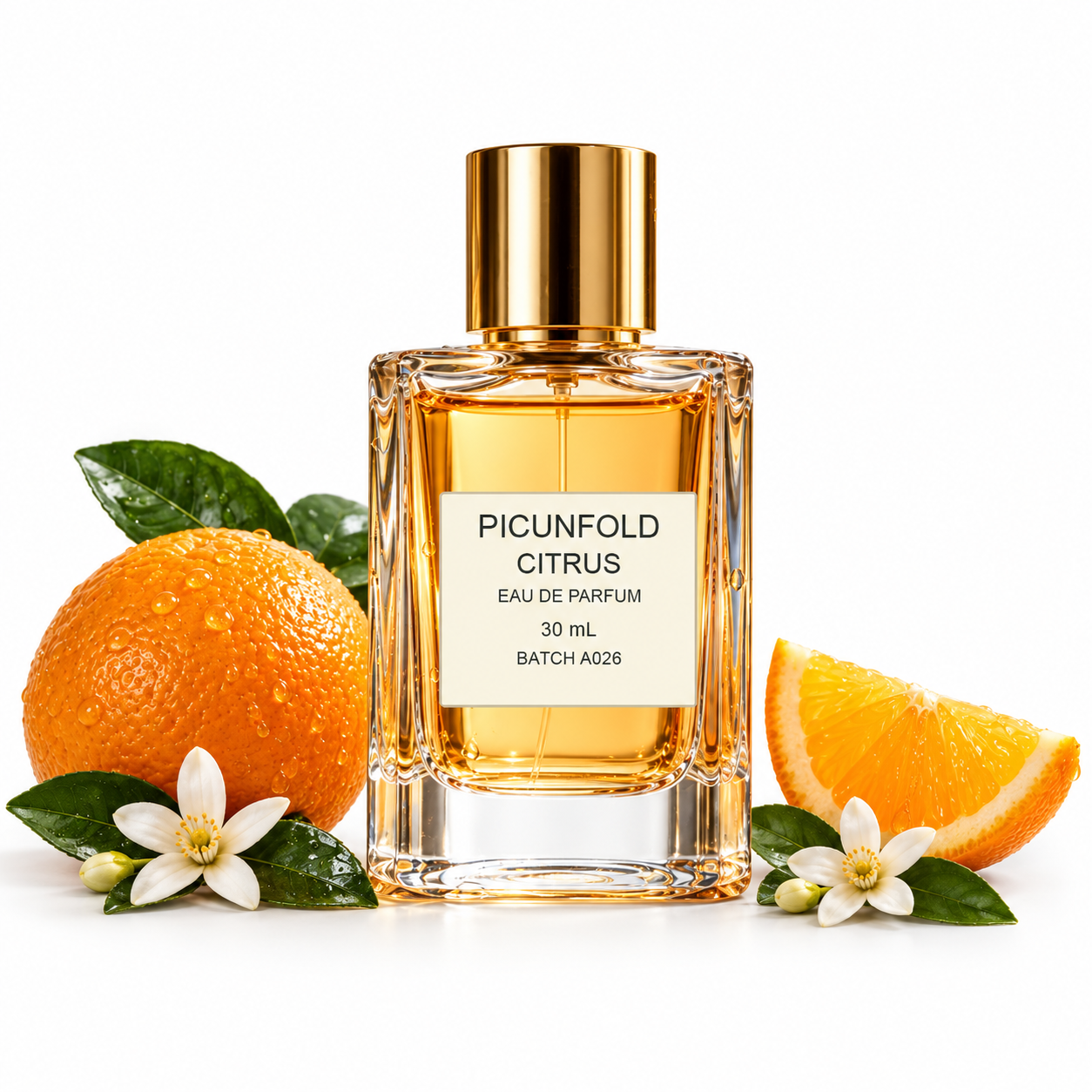
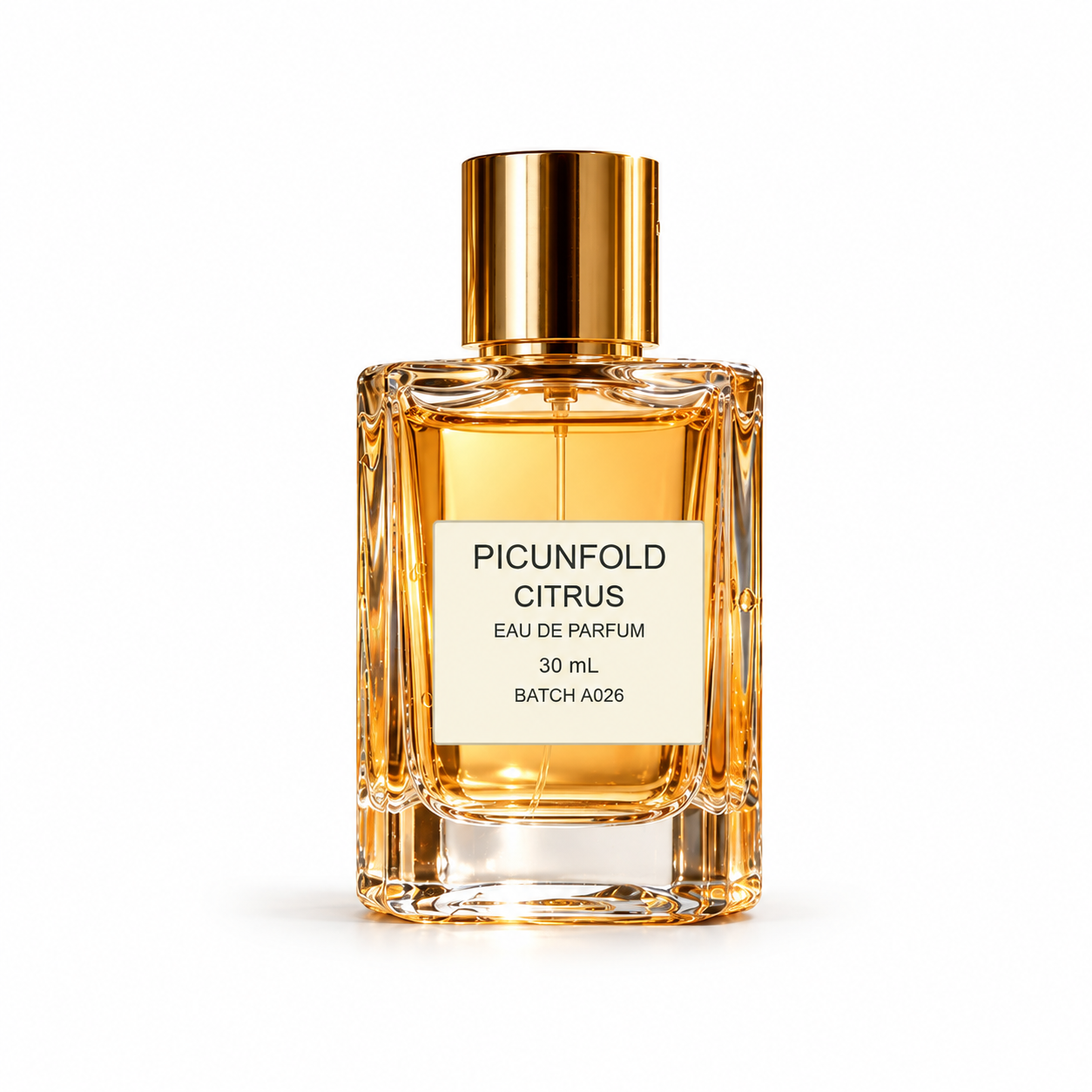
Both prompts requested a plain white background and surface with a soft contact shadow. The scoped request specified the bottle, label, lettering, proportions, crop and camera angle as details to retain.
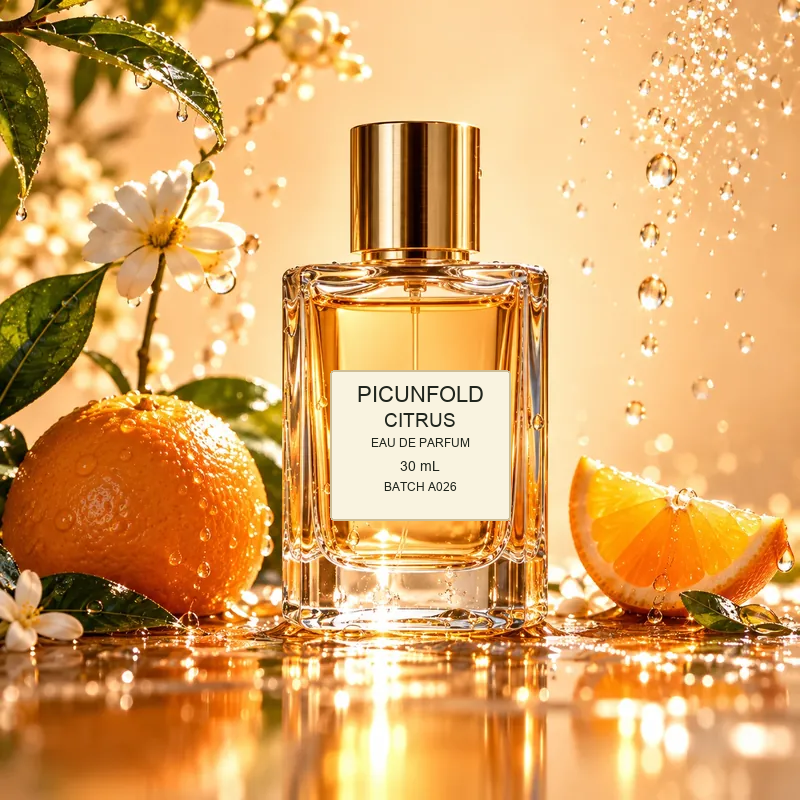
Basic prompt
Replace the background and surface with a plain white studio background and a soft contact shadow.
Scoped prompt
Replace the background and surface with a plain white studio background and a soft contact shadow. Change only the background and surface. Keep the exact same bottle, cap, amber liquid, label position, label shape, label colors, all printed label text character-for-character, proportions, crop and camera angle. Preserve the lighting on the bottle. Do not add or rewrite lettering. Leave everything else unchanged.
All five label strings appear readable and correct in both outputs: PICUNFOLD, CITRUS, EAU DE PARFUM, 30 mL and BATCH A026. That is an observation about these two files, not a measured label-preservation rate.
The basic result kept citrus, leaves and flowers as styled props. The scoped result showed an isolated bottle on white. Neither output kept the input’s framing, reflections and label rendering exactly. Even the scoped request’s explicit instruction to preserve the crop did not establish an exact match.
If you need a clean product cutout, specify which surrounding elements should be removed as well as which product details should stay. Here, the scoped output was closer to an isolated-bottle composition, but one sample cannot separate a dependable prompt effect from ordinary output variation. Try your own image with the background changer, then check the label and silhouette before using the result.
Check the result before you use it
Open the original and output at full size. Do not judge preservation from a small thumbnail.
- Portraits: inspect eye shape and spacing, nose, mouth, jaw, expression, skin texture, hairline, glasses and the requested crop. Check whether lighting or retouching changed a detail you meant to retain.
- Products: read every character on the label, including numbers and units. Compare the cap, silhouette, proportions, material color and camera angle. Correct text alone does not mean the whole product is unchanged.
- The rest of the image: look for added props, shifted shadows, unwanted cropping and changes outside the requested area.
For an object-color edit, name the part to recolor and the neighboring parts to leave alone. For an object-removal edit, check what was reconstructed behind the removed object. These are different checks from simply deciding whether the output looks good.
When instructions are not enough
If an important detail changes, a reasonable next attempt is to simplify the edit and name that detail explicitly. Returning to the original avoids carrying an unwanted result into another attempt, but this pilot did not compare restarting with chained editing. It cannot establish that one workflow always preserves more detail.
When label artwork, facial pixels or another region must stay exact, use a layer-based editor to combine the approved edit with the original region. This is a separate editing step; the four outputs above do not include a compositing demonstration. For a product listing that must match the real item precisely, retain the original product photograph for that view when needed.
Only edit photographs of people with their agreement. The fictional portrait in this guide avoids presenting a real person’s photo as a test input.
Questions about preserving details
Can a prompt guarantee that my face or label stays unchanged?
No. A preservation instruction does not establish a pixel lock. In this pilot, the requested backgrounds changed and the product label text remained readable, but rendering and framing still changed. Inspect the output and use a layer editor when part of the original must stay exact.
Did the scoped prompt work better in these tests?
The scoped product result isolated the bottle more clearly, while the basic result kept citrus props. Both kept all five label strings. The portrait pair does not establish a consistent preservation advantage. Each condition was run once, so these examples cannot measure reliability.
Were these photos and results made with the same process?
The inputs were prepared synthetic fixtures: a fictional adult portrait and perfume artwork with a typeset fictional label. The four edits were generated through Kie with the GPT Image 2.5 Flare model ID at the requested 1K setting. The output files were not retouched.
Should I keep editing a previous result or return to my original?
This pilot did not test chained edits. Returning to your original is a useful retry option when a result has drifted; continuing from a good result can also be useful. Restate the important constraints and compare each step. This article does not claim one approach always wins.
Files and further reading
The image links above open the unchanged source fixtures and raw provider outputs. The page uses smaller WebP previews for display. The public study record contains the exact prompts, dimensions, checksums and input provenance, without API credentials or temporary upload URLs.
For more workflows, see how editing works, the recorded editing examples and current prices. The historical examples page identifies its own generation model; those images are not additional GPT Image 2.5 Flare results for this study.
Primary reference: OpenAI image prompting documentation, checked October 26, 2026. The practical recommendations above distinguish that vendor guidance from what our four files actually show.